File conversion
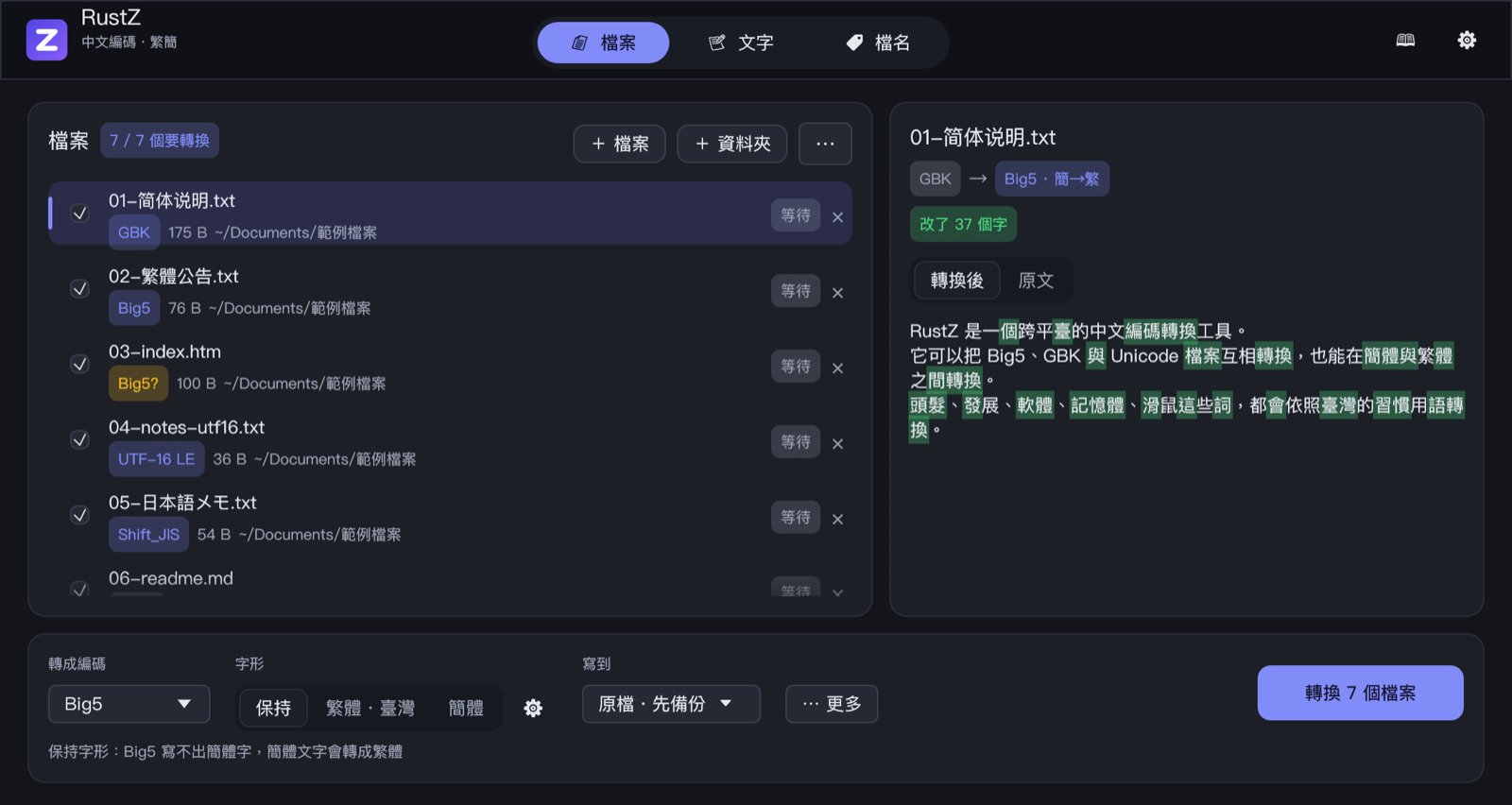
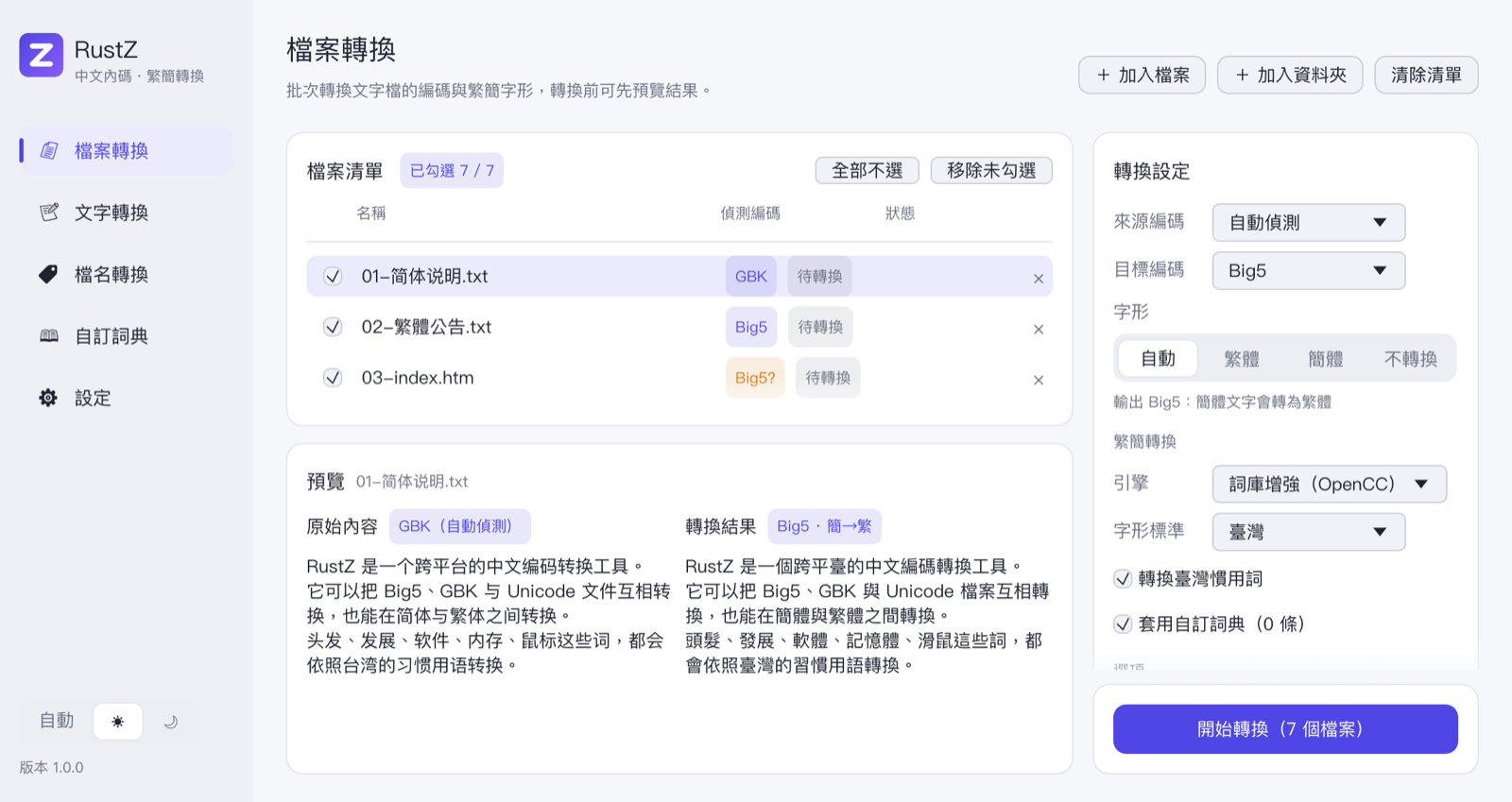
檔案轉換 converts the encoding and script of text files in bulk. The file list is at the top left, the preview below it, and the conversion settings on the right.
Adding files
- Use + 加入檔案 (Add files) or + 加入資料夾 (Add folder) at the top right, or drop files and folders on the window.
- Folders include their subfolders by default (加入資料夾時包含子資料夾, Include subfolders when adding folders, in the output section).
- When adding a folder, RustZ skips the ignored file types (images, archives, executables…) and hidden entries whose names start with a dot. Files you add one by one are always listed.
- A file is never added twice.
The file list
| Column | Meaning |
|---|---|
| Checkbox | Only ticked files are converted. 全選/全部不選 (Select all / none) and 移除未勾選 (Remove unticked) are at the top right of the list |
| 名稱, 位置, 大小 (name, folder, size) | When the window is narrow, size disappears first and then folder. Hover over a name for the full path |
| 偵測編碼 (detected encoding) | Based on the first 64 KB. Orange with a "?" means there was too little to go on and this is a guess; 二進位檔 (binary) files are skipped |
| 狀態 (status) | 待轉換 pending, 轉換中 converting, 完成 done, 無變更 unchanged, 略過 skipped, 失敗 failed. Hover over done, skipped or failed for details |
The × at the end of a row removes the file from the list.
Preview
Click a file and the bottom panel shows 原始內容 (original) and 轉換結果 (result) side by side. The labels show the detected encoding and what conversion was done, such as "Big5 · 簡→繁".
- The preview reads only the start of the file (16 KB by default, adjustable in Settings) and never writes anything.
- A note appears next to the title when characters cannot be written in the target encoding, when bytes could not be decoded, or when a charset declaration was rewritten.
Conversion settings
| Setting | Meaning |
|---|---|
| 來源編碼 (source encoding) | 自動偵測 (detect) by default. If detection gets it wrong, pick the encoding yourself — files that look binary are then converted too |
| 目標編碼 (target encoding) | Big5, GBK, UTF-8, UTF-16 LE/BE, Shift_JIS, EUC-JP, ISO-2022-JP, HZ |
| 字形 (script) | Auto, Traditional, Simplified or none — see below |
| 繁簡轉換 (script conversion) | Shown only when the script may change: engine, glyph standard, Taiwan vocabulary and custom dictionary. See Conversion engines |
The four script options:
| Option | Behaviour |
|---|---|
| 自動 (Auto) | Writing Big5 converts Simplified text to Traditional; writing GBK or HZ converts Traditional text to Simplified; other encodings keep the script. Text already in the target script is not converted again |
| 繁體 (Traditional) | Always convert to Traditional (skipped when the source is Big5, which is Traditional already) |
| 簡體 (Simplified) | Always convert to Simplified (ignored when writing Big5, which has no Simplified characters — Auto is used instead) |
| 不轉換 (None) | Keep the script. Characters the target encoding lacks are replaced with an equivalent, such as 发 → 發 when writing Big5 |
Options
- UTF-8 加上 BOM (Add a BOM to UTF-8): only matters when the target is UTF-8. UTF-16 always gets a BOM.
- 將 &#NNNN; 數字記法轉成文字 (Turn &#NNNN; into text):
中becomes 中. Only characters from U+0080 up are converted, so<and other HTML syntax characters stay as they are. - 修正網頁的 charset 宣告 (Fix charset declarations in web pages): in web-page file types (
*.htm*,*.php*,*.js…),<meta charset>and the XMLencodingare changed to the target encoding. Web-page files write missing characters as&#NNNN;; other files use?.
Output
- 覆寫原檔 (Overwrite originals): results replace the original files. Tick 先將原檔備份為「檔名.bak」 to keep a backup first; if
name.bakalready exists, the backup becomesname.1.bakand so on, so earlier backups are never overwritten. RustZ asks for confirmation when you start. - 另存到資料夾 (Save to folder): results go to the folder you choose, keeping the subfolder structure. Files of the same name there are overwritten; the originals are not touched.
Starting
開始轉換(N 個檔案) (Start, N files) is pinned to the bottom of the settings panel, so it stays visible in a short window. Conversion runs in the background and can be cancelled at any time; when it finishes, RustZ reports how many files were converted, unchanged, skipped and failed.
- Each file is written to a new, randomly named temporary file and renamed when complete, so an interrupted run never damages the original. Symbolic links planted in the folder are never followed.
- A file with bytes that cannot be decoded is skipped instead of being overwritten without a backup (status 略過, skipped, with the reason on hover). Pick the right source encoding, turn on backups, or save to a folder.
- Files whose bytes would not change are not rewritten (status 無變更, unchanged) and keep their modification time.
- After conversion the list detects the encodings again, so you can check the result straight away.